Pro Modules
Lite Video Embed
👉 View module on HubSpot Marketplace
The Lite Video Embed module allows you to embed YouTube or Vimeo videos in a performance-optimized way. All settings are available in the sidebar panel when editing a page in HubSpot.
👉 View module preview — this is a HubSpot landing page showing the module in action. You can use it to test performance with tools like PageSpeed Insights.
Content tab (video setup)
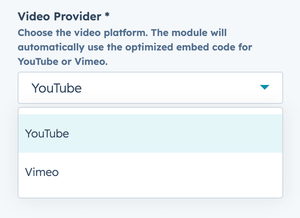
Video Provider
Select your video platform (YouTube or Vimeo).
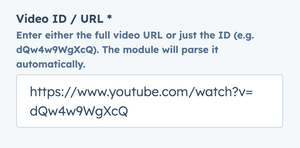
Video ID / URL
Paste the full video link or just the video ID.
- Example YouTube:
https://www.youtube.com/watch?v=dQw4w9WgXcQ - Example Vimeo:
https://vimeo.com/861680818
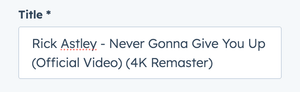
Title
Accessible label shown for the video. Default: Play Video.
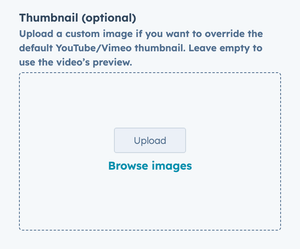
Thumbnail (optional)
Upload a custom thumbnail or leave blank to use the platform’s preview.
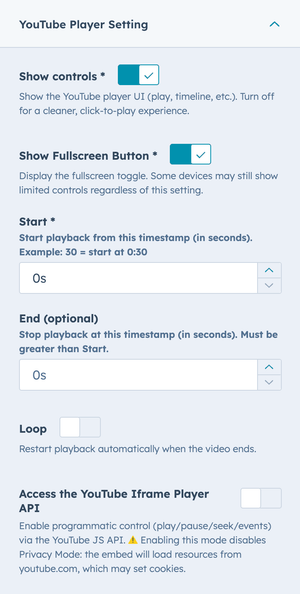
YouTube Player Setting (shown only when YouTube is selected)
- Show controls — display YouTube UI (playbar, buttons).
- Show Fullscreen Button — toggle fullscreen icon visibility.
- Start — start playback at a specific second (e.g.,
30→ starts at 0:30). - End (optional) — stop playback at a specific second (must be greater than Start).
- Loop — loop the video when it ends.
- Access the YouTube Iframe Player API — enable programmatic control (play/pause/seek/events).
⚠️
Enabling the JS API disables Privacy mode for YouTube (loads fromyoutube.comand may set cookies).
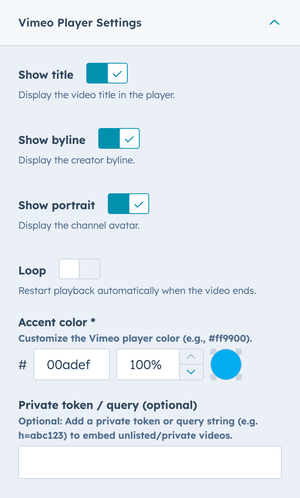
Vimeo Player Settings (shown only when Vimeo is selected)
- Show title — display the video title.
- Show byline — display the creator byline.
- Show portrait — display the channel avatar.
- Loop — loop the video when it ends.
- Accent color — set the player’s accent color (e.g.,
#ff9900). Can inherit from theme’s primary color. - Private token / query (optional) — append a private token or query (e.g.,
h=abc123) for unlisted/private videos.
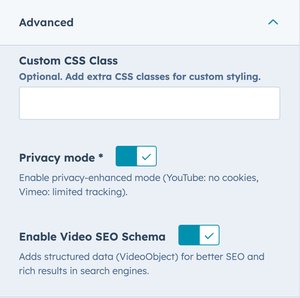
Advanced options
Expand the Advanced group in the sidebar:
- Custom CSS Class — add extra classes for targeting or styling.
- Privacy mode — YouTube no-cookie embed / Vimeo limited tracking.
- Enable Video SEO Schema — injects structured data (VideoObject) into the page.
Example SEO schema output
When enabled, the page will include JSON-LD markup like this:
<script type="application/ld+json">
  {
    "@context": "https://schema.org",
    "@type": "VideoObject",
    "name": "Rick Astley - Never Gonna Give You Up (Official Video) (4K Remaster)",
    "description": "“Never Gonna Give You Up” was a global smash on its release in July 1987.",
    "thumbnailUrl": ["https://i.ytimg.com/vi/dQw4w9WgXcQ/maxresdefault.jpg"],
    "uploadDate": "1987-07-27T00:00:00+00:00",
    "inLanguage": "en",
    "embedUrl": "https://www.youtube-nocookie.com/embed/dQw4w9WgXcQ",
    "potentialAction": {
      "@type": "WatchAction",
      "target": "https://www.youtube-nocookie.com/embed/dQw4w9WgXcQ"
    }
  }
</script>
Style tab
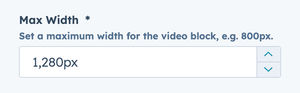
Max Width
Set a maximum width for the video block (in pixels), e.g., 1280, 960, or 800.
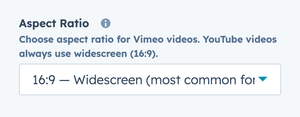
Aspect Ratio (Vimeo only)
Choose the aspect ratio for Vimeo videos (YouTube uses fixed 16:9):
- 16:9 — widescreen (default)
- 4:3 — standard
- 1:1 — square
- 9:16 — vertical/portrait
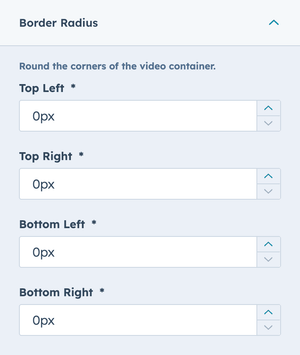
Border Radius
Round the container corners (pixels per corner):
- Top Left, Top Right, Bottom Left, Bottom Right
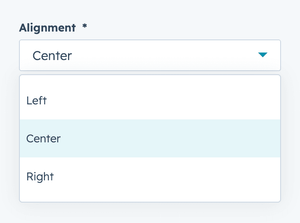
Alignment
Align the embed within its container: Left, Center (default), or Right.
Looking to install this module?
👉 Get Lite Video Embed on the HubSpot Marketplace